Covia in ChatGPT
The same Covia connector that powers Covia in Claude also works with ChatGPT. The connector is a standard remote MCP server with OAuth 2.1, so ChatGPT can add it as a custom connector, sign a capability grant on the same consent page, and operate your venue — every action landing as a job record on your venue.
The connector lives at connector.covia.ai and works with any venue, including one you host yourself.
The connector implements the open standards ChatGPT's connectors use (MCP over streamable HTTP, OAuth 2.1 with PKCE, and Client ID Metadata Documents). Adding it through Developer Mode or a workspace custom connector works today. A listing in the ChatGPT apps directory is a separate, in-progress step; until then, use the manual-connector route below.
Where custom connectors live in ChatGPT
- Developer Mode (ChatGPT Plus/Pro): Settings → Connectors → Advanced → Developer mode, then add a connector by URL. Best for individual testing.
- Workspace connectors (Business/Enterprise/Edu): an admin adds the connector under Settings → Connectors for the workspace.
In either case, the connector URL is:
https://connector.covia.ai/mcp
Connect
-
Add
https://connector.covia.ai/mcpas a custom connector (see above for where). -
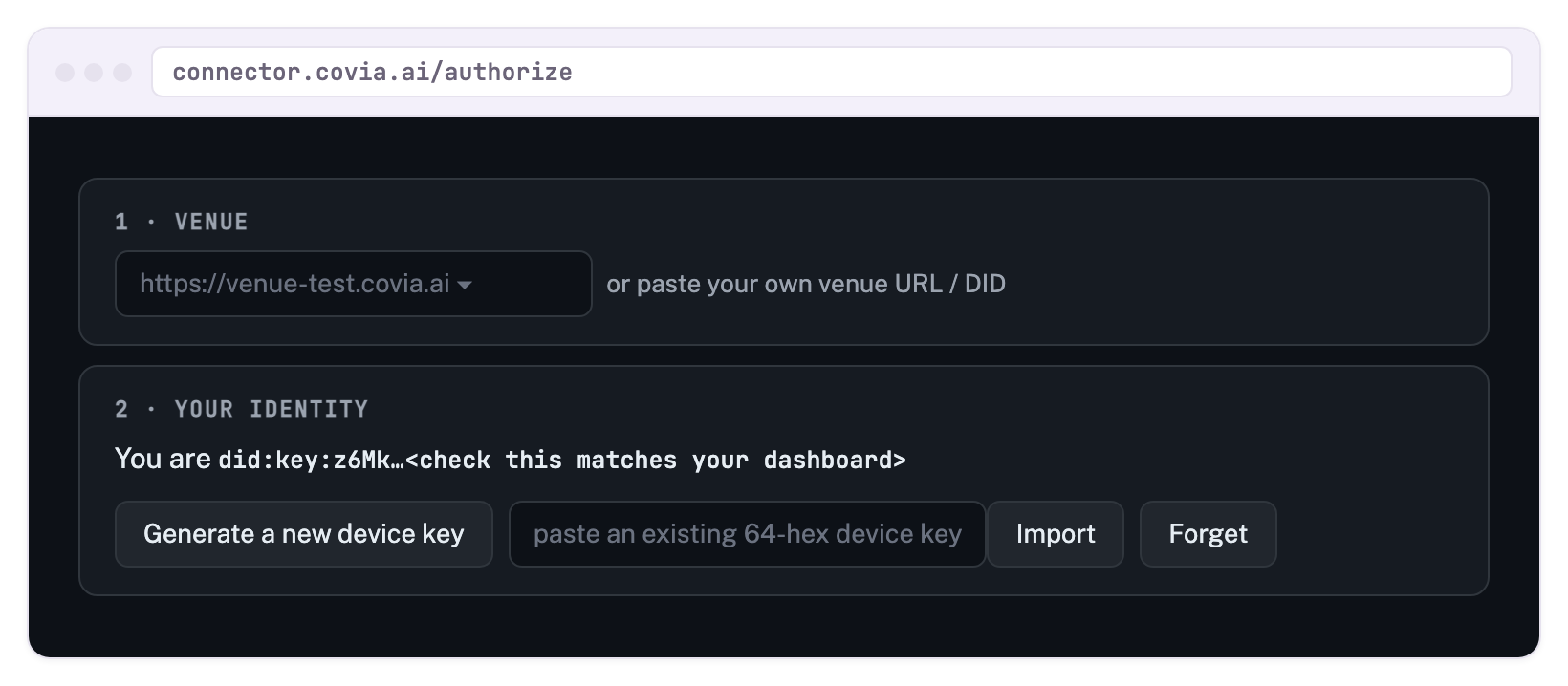
ChatGPT discovers the connector's authorisation server and opens the consent page — the same page Claude users see, titled Connect Covia to ChatGPT. Pick your venue, then check the identity under 2 · Your identity.
-
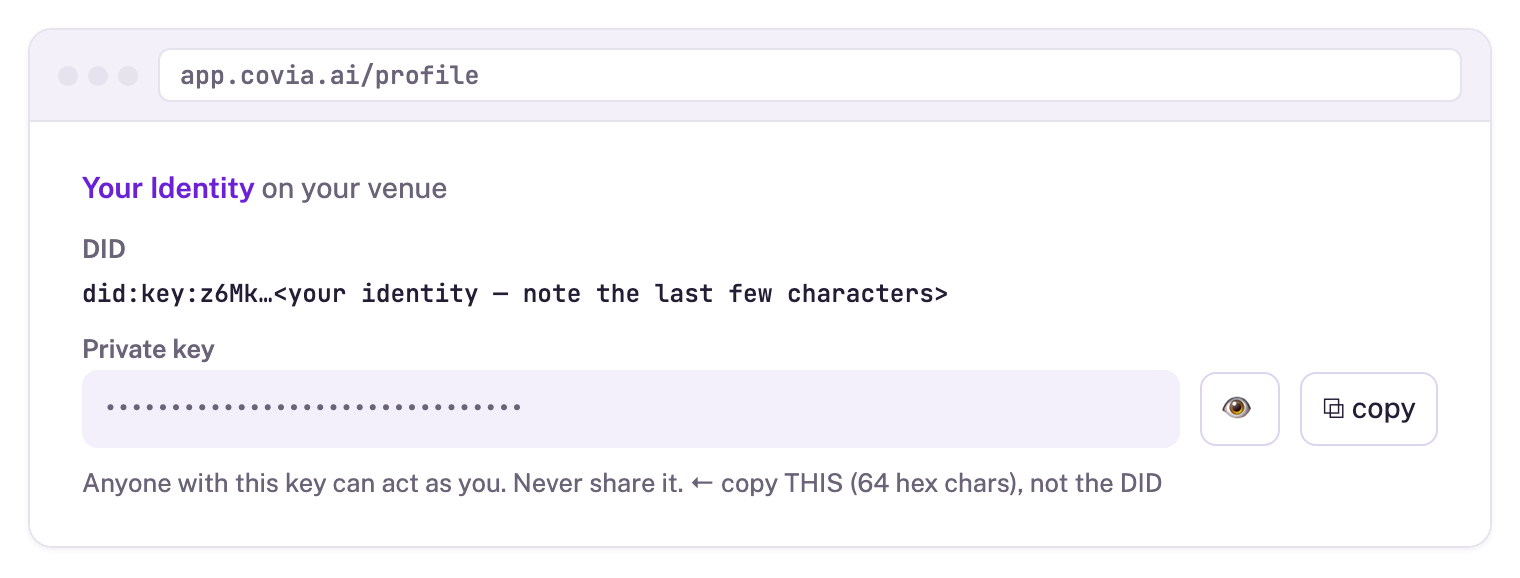
Provide your device key: generate a new one, or import the key you use with app.covia.ai (Profile → copy the Private Key, the 64-hex value — not the DID). The key stays in your browser and signs the grant locally.
-
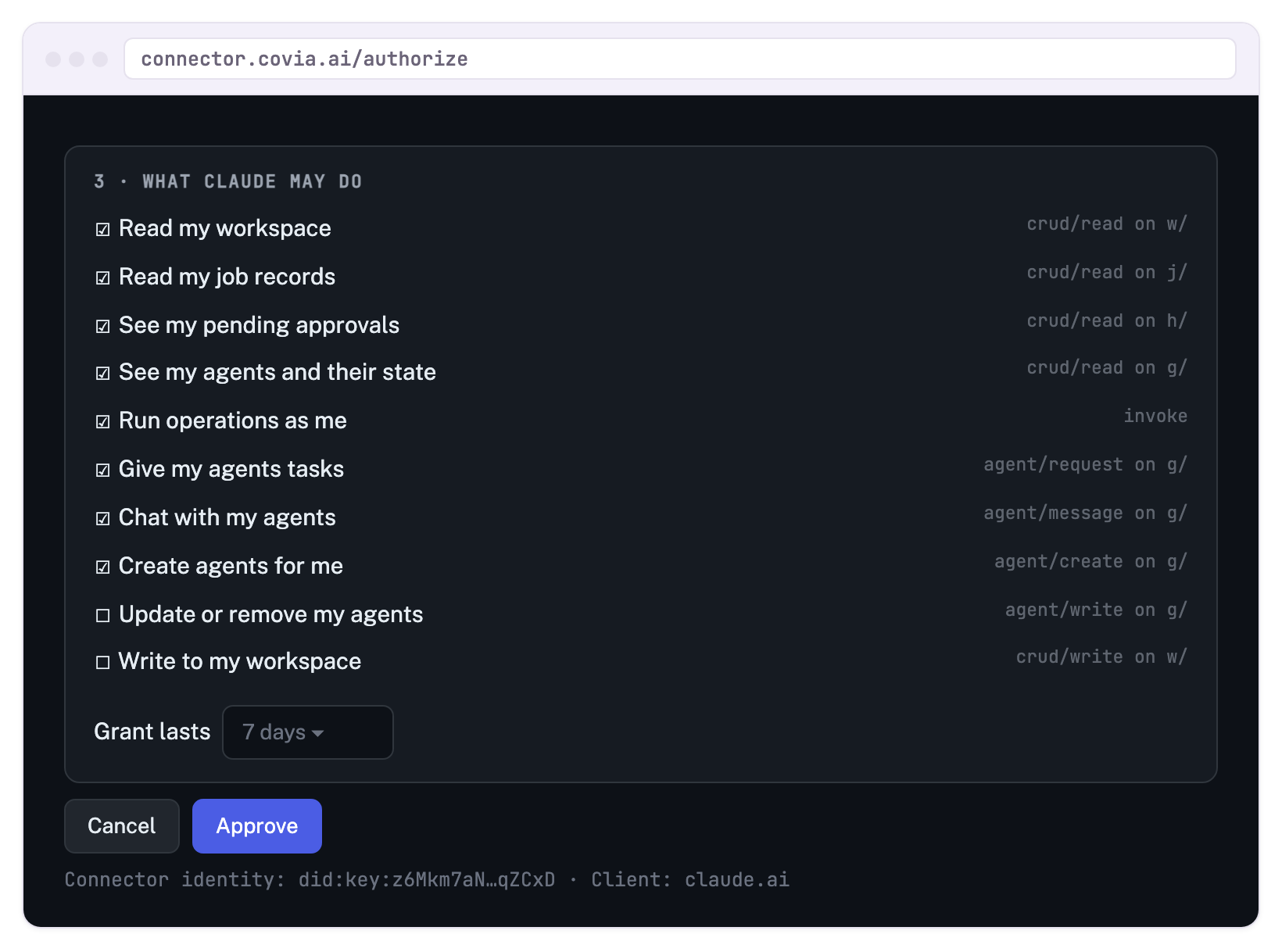
Tick the capabilities ChatGPT may use, choose a duration, and Approve.
Your workspace, agents, and secrets belong to the identity (DID) of the device key you use. Import your dashboard key so ChatGPT shares them; a freshly generated key is a new, empty identity. After importing, confirm the You are did🔑… line ends with the same characters as your Profile page.
The import field wants the 64-character private key, not your did:key:… DID. If you paste the DID, the consent page tells you so.
What ChatGPT can do
The connector exposes the same tools regardless of assistant: list and run operations (each returns a receipt link), list and inspect your agents, chat with and task them, read and list your workspace, fetch job records, and see and answer pending approvals. Ask ChatGPT to "use covia_help" for built-in setup and troubleshooting guidance.
Agent chat runs on your own model provider account — store the provider key at app.covia.ai → Secrets (signed in with the same device key), by its conventional name (ANTHROPIC_API_KEY, OPENAI_API_KEY, GOOGLE_API_KEY, …). The connector never holds provider keys.
The trust model
The connector has its own grid identity (a did:key, shown on the consent page and at connector.covia.ai). It never holds your private key, your venue secrets, or your ChatGPT conversation: it acts under the UCAN grant you signed, the venue enforces that scope on every call, and anything outside it is refused. Receipts link to job records on your venue, so your audit trail stays yours. Remove the connector in ChatGPT — or let the grant expire — and the connection is powerless.
Troubleshooting
The Covia in Claude troubleshooting table applies here too — the identity, capability, and LLM-key behaviour is identical; only where you add and remove the connector differs.