Covia in Claude
The Covia connector puts your venue inside Claude. Claude (web, Desktop, and Claude Code) can run your operations, work with your agents, read your workspace, and answer your approvals, with every action landing as a job record on your venue, under a capability grant you sign yourself.
The connector lives at connector.covia.ai and works with any venue, including one you host yourself.
The same connector also works with ChatGPT.
The connector hosts a step-by-step visual guide at connector.covia.ai/claude — the same steps below, each with a clean recreation of the exact screen you will see.
Connect in about two minutes
-
In Claude, open Settings → Customize → Connectors → Add → Custom connector and enter:
https://connector.covia.ai/mcp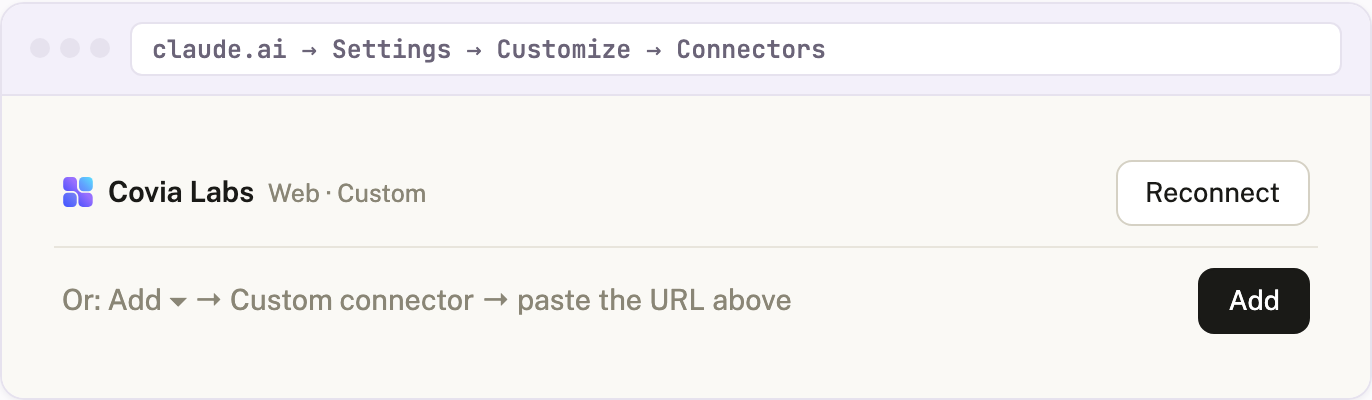
-
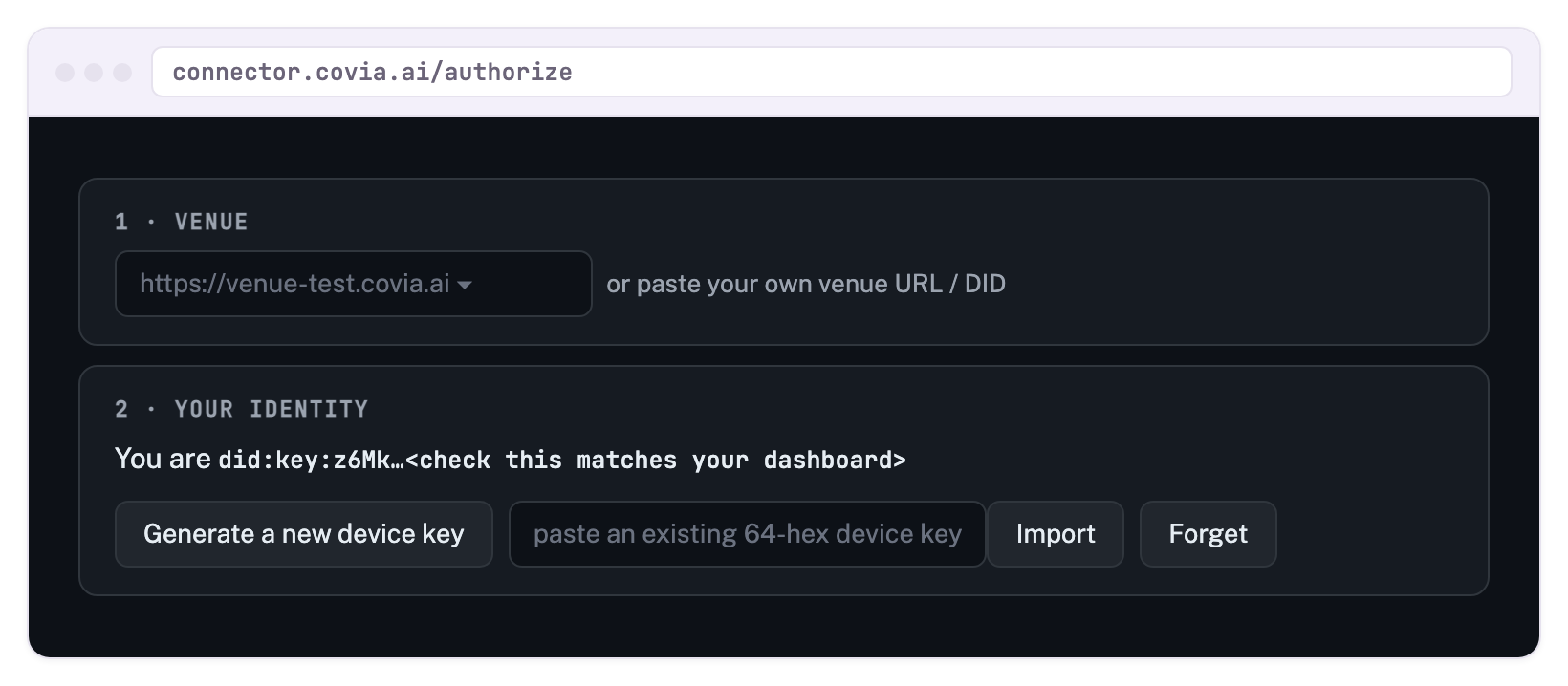
Claude discovers the connector's authorisation server and opens the consent page. Pick your venue (any venue works, including a self-hosted one — paste its URL), then check the identity shown under 2 · Your identity.
-
Provide your device key. Generate a new one, or import the key you use with app.covia.ai: open Profile, and copy the Private Key (64 hex characters — not the DID) with the button beside it.
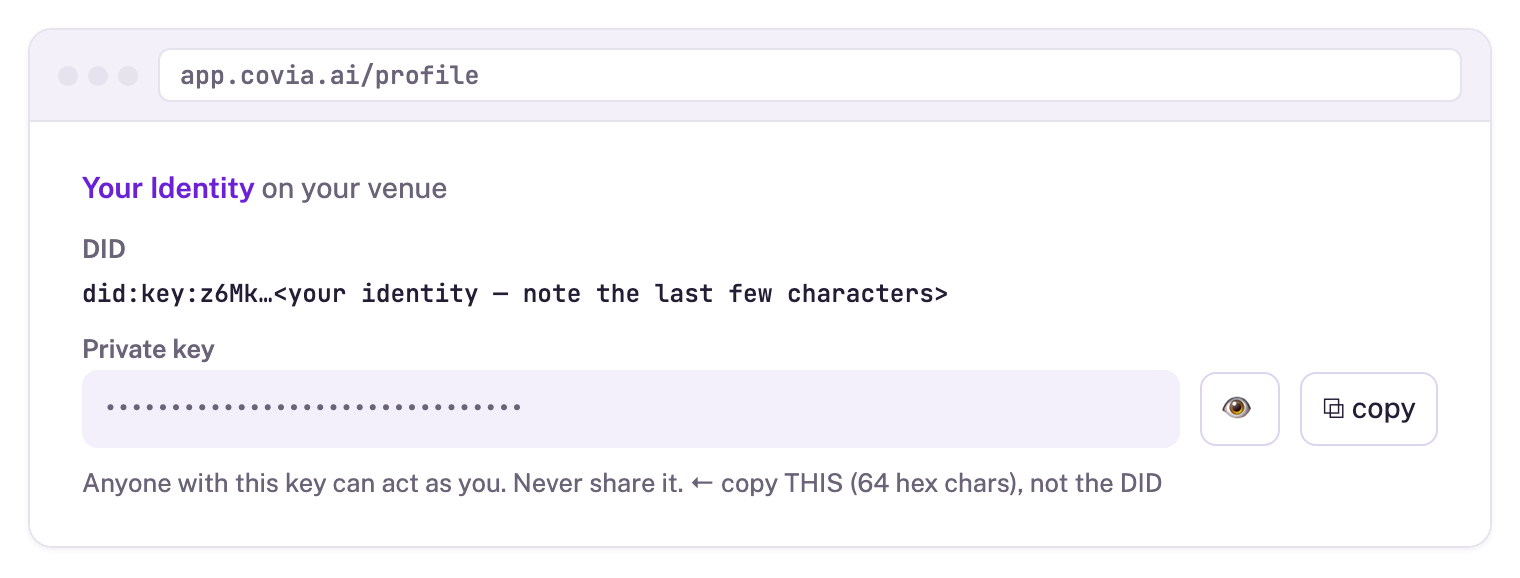
The key stays in your browser and signs the grant locally.
-
Tick the capabilities Claude may use and choose a duration, then Approve. The venue enforces exactly these capabilities; the two off-by-default rows are the more consequential ones.
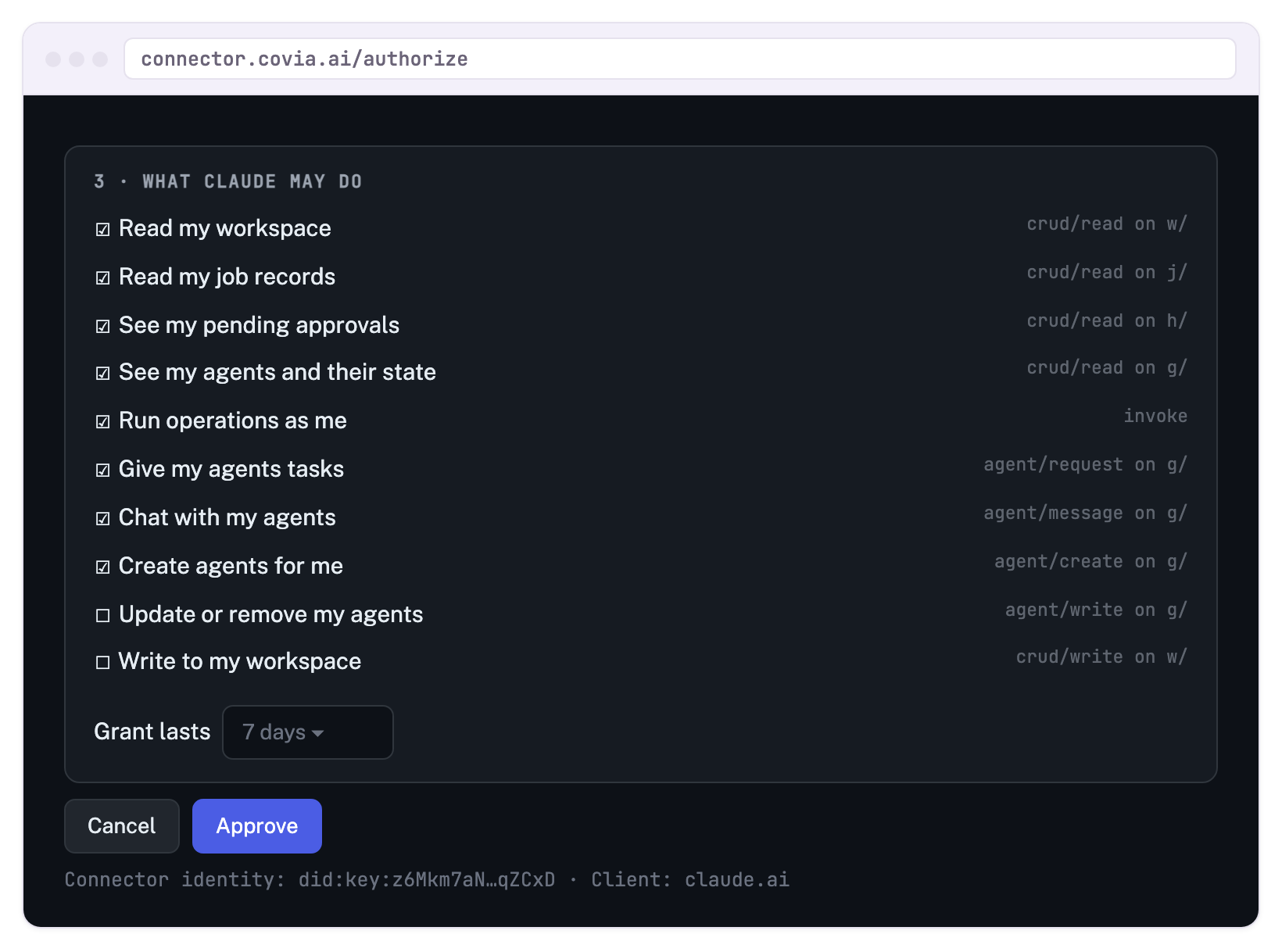
Your workspace, agents, and secrets belong to the identity (DID) of the device key you use. Importing your dashboard key means Claude shares them; generating a fresh key creates a new, empty identity. After importing, confirm the You are did🔑… line ends with the same characters as your Profile page.
The import field wants the 64-character private key, not your did:key:… DID (which is your public identity). If you paste the DID, the consent page tells you so.
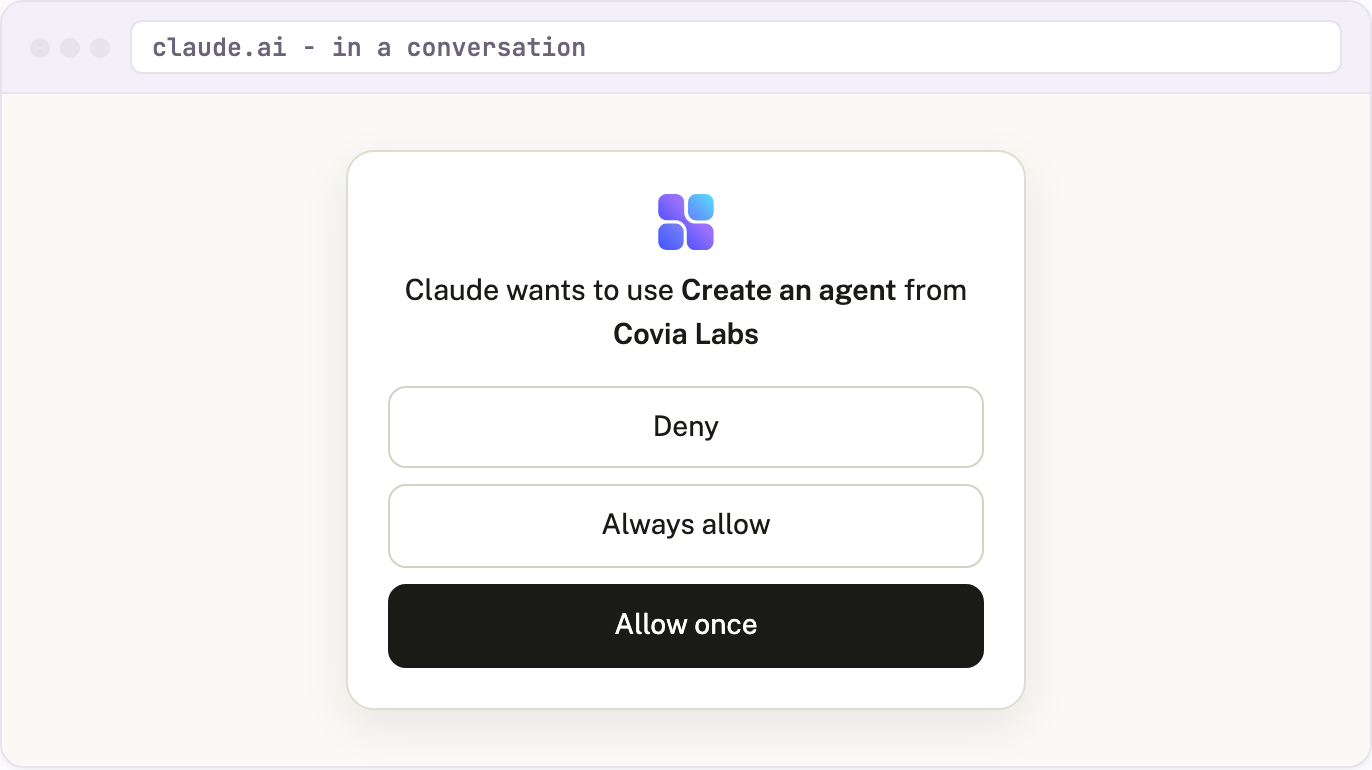
The first time Claude uses each tool, it asks permission in the conversation — Allow once keeps you in the loop; Always allow suits trusted read-only tools.
What Claude can do
Ask Claude naturally; the connector's tools map to your venue:
- Operations: list what the venue offers and run any operation. Each run returns a receipt link to the job record.
- Agents: list your agents, inspect them, chat with them, and give them tasks.
- Workspace: read and list your lattice paths (
w/workspace,g/agent state,j/jobs,h/inbox). - Approvals: see pending human-in-the-loop requests and answer them. Claude always confirms with you before answering approvals or capability asks.
- Help: Claude can consult the built-in
covia_helptool for setup and troubleshooting guidance.
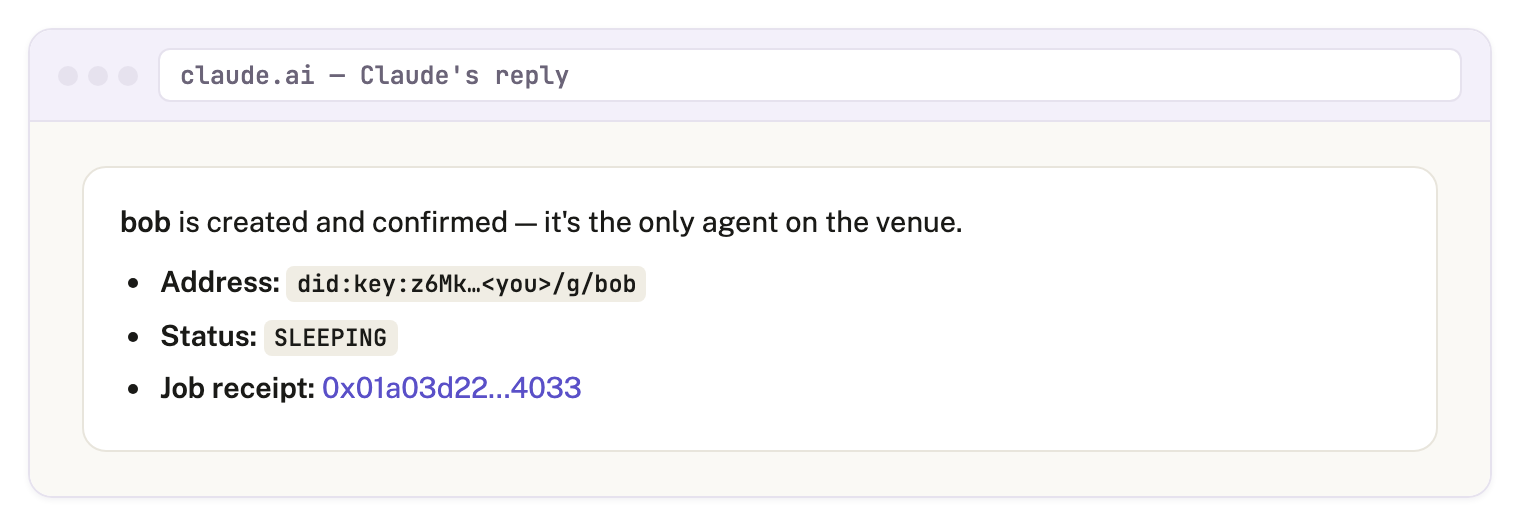
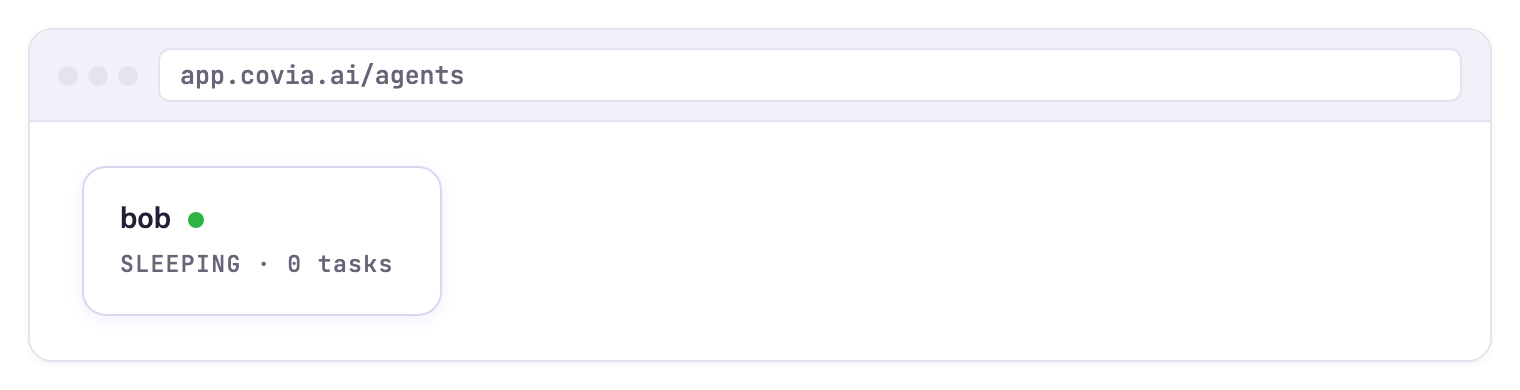
For example, ask "Create an agent called bob on my Covia venue, then list my agents to confirm." The reply names the agent's address under your own DID, with a job-receipt link that opens the signed record on your venue — and the agent appears in your dashboard.
Chatting with agents needs your LLM key
Agent conversations run on your own model provider account. Store your key on the venue, signed in with the same device key you connected with:
- Open app.covia.ai → Secrets.
- Add the provider key by its conventional name:
ANTHROPIC_API_KEY(Claude models),OPENAI_API_KEY,GOOGLE_API_KEY, and so on.
Keys resolve per identity from your own encrypted secret store. The connector never holds provider keys.
The trust model, in one paragraph
The connector has its own grid identity (a did:key, shown on its consent page and at connector.covia.ai). It never holds your private key, your venue secrets, or your files: it acts under the UCAN grant you signed, the venue enforces that scope on every call, and anything outside it is refused with the exact missing capability named. Receipts in every result link to the job record on your venue, so your audit trail stays yours. Disconnect in Claude's settings (or let the grant expire) and the connection is powerless.
Troubleshooting
| Symptom | Cause and fix |
|---|---|
| Your workspace or agent list is empty, but the dashboard is not | Claude is connected as a different identity. Reconnect and import your dashboard key; the DIDs must match. |
| Clicking Import does nothing, or shows an error | You pasted the DID or an incomplete string. Import needs the 64-character private key from Profile. |
| "Not permitted … reconnect and tick the capability" | The grant does not include that capability. Disconnect, reconnect, and tick the named row — a signed grant cannot be edited, only replaced. |
| Chatting with an agent returns a provider or API-key error | No model key is stored for this identity. Add it at Secrets, signed in with the same device key. |
| Everything stopped working after some days | The grant expired, by design. Reconnect; choose a longer duration if you prefer. |
| Not sure what Claude can do | Ask it to "use covia_help" — the connector answers setup and troubleshooting questions itself. |
Self-hosted venues
Nothing above assumes a Covia-operated venue: paste your own venue's URL on the consent page and the same flow applies. Claude Code users can also skip the connector entirely and add a venue's own MCP endpoint directly with a bearer token; see Venues as MCP servers.